In March 2026, Anthropic introduced Claude Code Channels, a feature that lets you work with Claude Code through Telegram or Discord. Messages from the messaging app arrive in an open session on your computer, where Claude already has access to your project and its working context. Channels is in research preview, an early testing stage, …
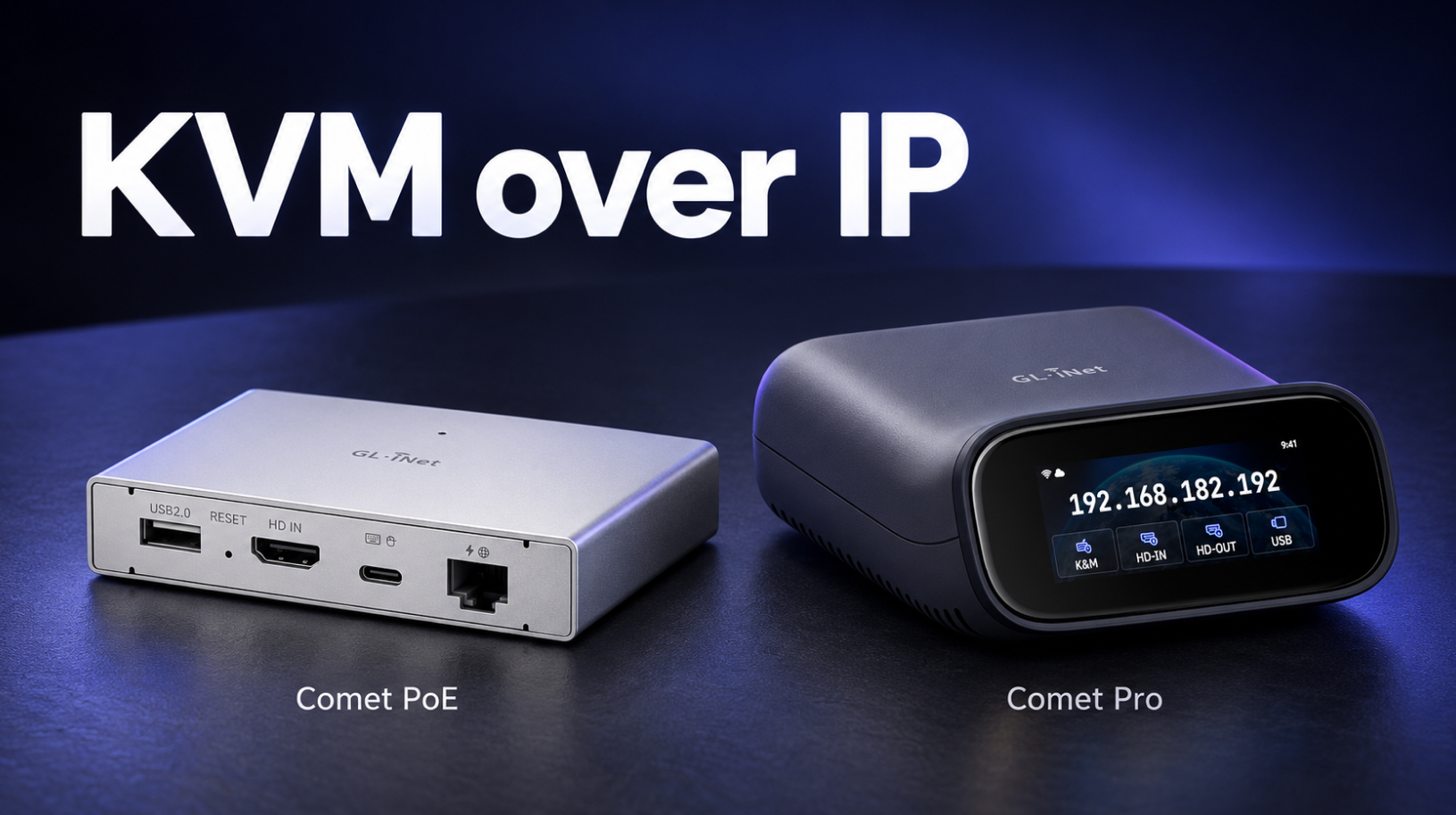
What is KVM over IP? Remote access with GL.iNet Comet
KVM over IP lets you regain access to a computer when Windows gets stuck during an update or Linux fails to boot after a sudden power loss. A separate device gives you a view of the screen and control of the keyboard and mouse before the operating system starts, when AnyDesk or SSH is unavailable. …
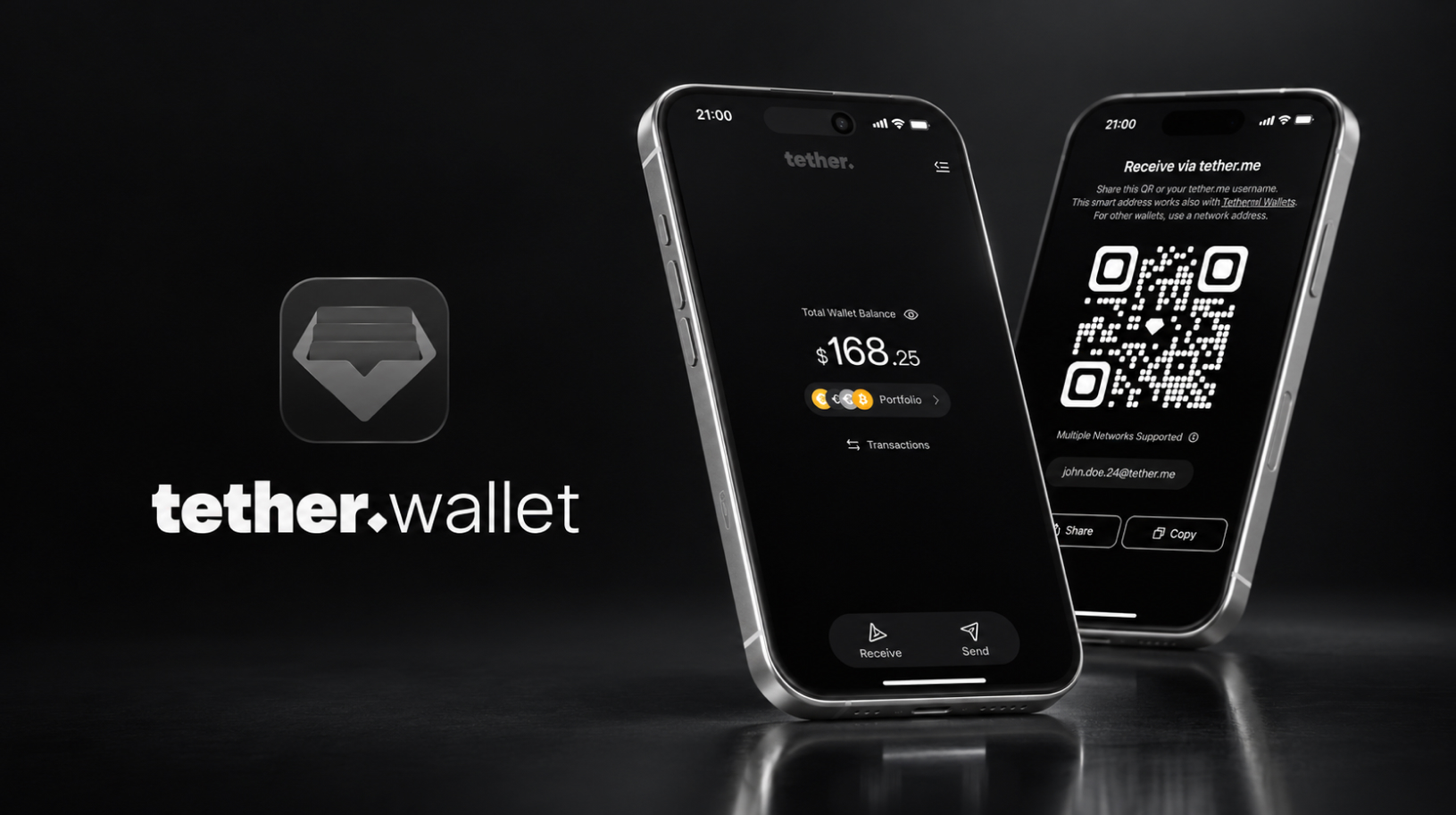
Tether Wallet: How the Official USDT Wallet Works and Who It’s For
On April 14, 2026, Tether, the issuer of USDT, launched its official self-custody wallet, Tether Wallet (tether.wallet), giving users control over their private keys. The app lets you pay fees in the token you are sending and transfer funds using a username instead of a long address. We reviewed its features, terms of use and …
USDT vs USDT0: differences and what to check before a transfer
If you hold USDT on Arbitrum or Polygon, your block explorer and some wallets may already display it as USD₮0 (USDT0). On Optimism, several exchanges and swap services switched to a new contract in September–October 2026, changing how they accept deposits of the old token. USDT0 is backed by USDT at a 1:1 ratio and …
Messaging apps without a phone number: what to use instead of Telegram
Messaging apps without a phone number let you chat without linking your account to your personal number. This can be useful when discussing trades in crypto communities, where you may not want to give new contacts information that could lead them to your personal profiles. SimpleX, Session and Threema have different registration requirements, privacy features …
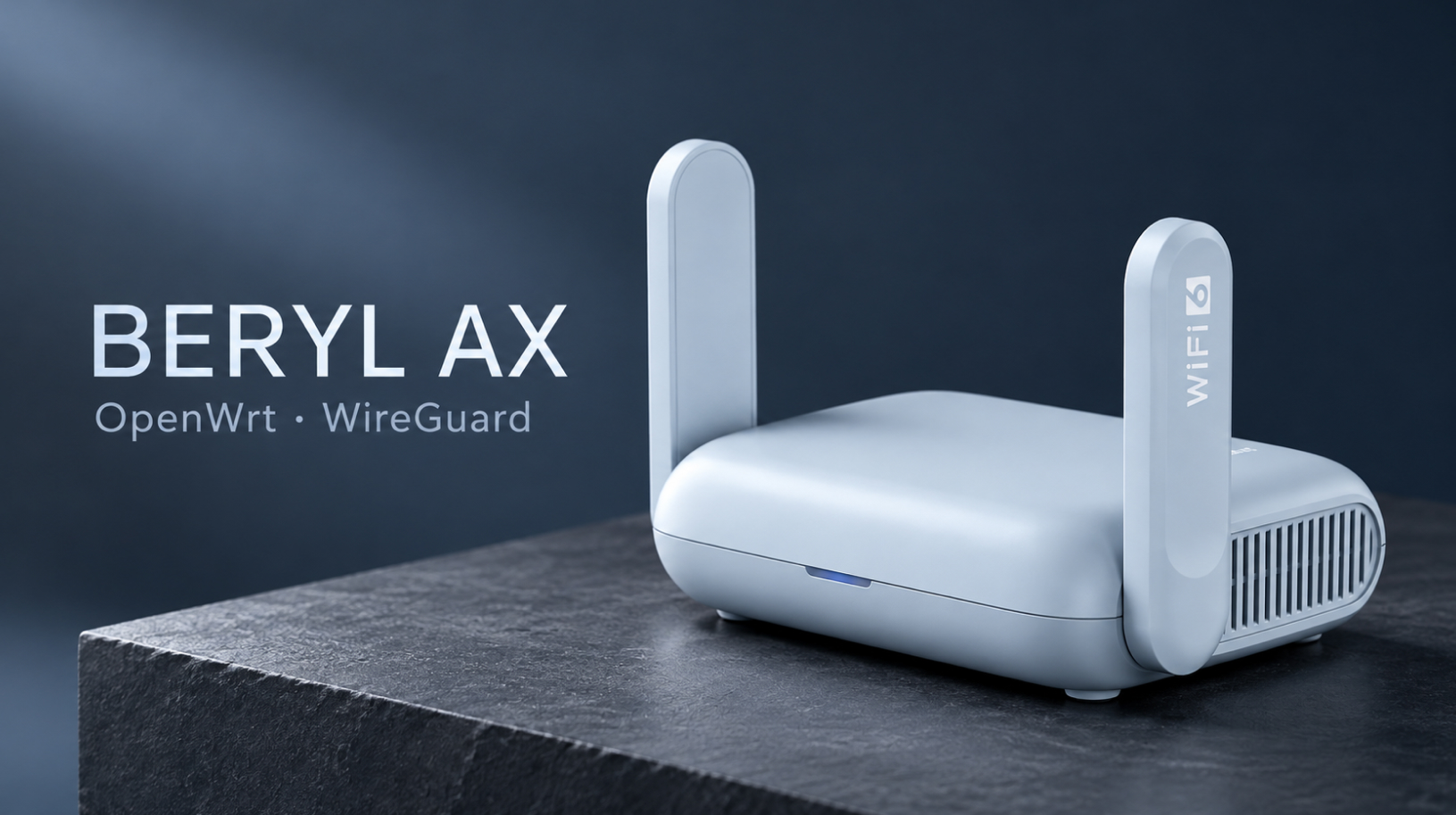
Beryl AX setup guide: VPN and OpenWrt
Updated October 2026: GL.iNet firmware 4.9.0 and OpenWrt 25.12.5. This Beryl AX setup guide for the GL-MT3000 covers choosing firmware, installing OpenWrt, and creating a secure Wi-Fi network with VPN access for your laptop and phone. We will configure WireGuard, DNS and a kill switch — a rule that blocks direct internet access if the …
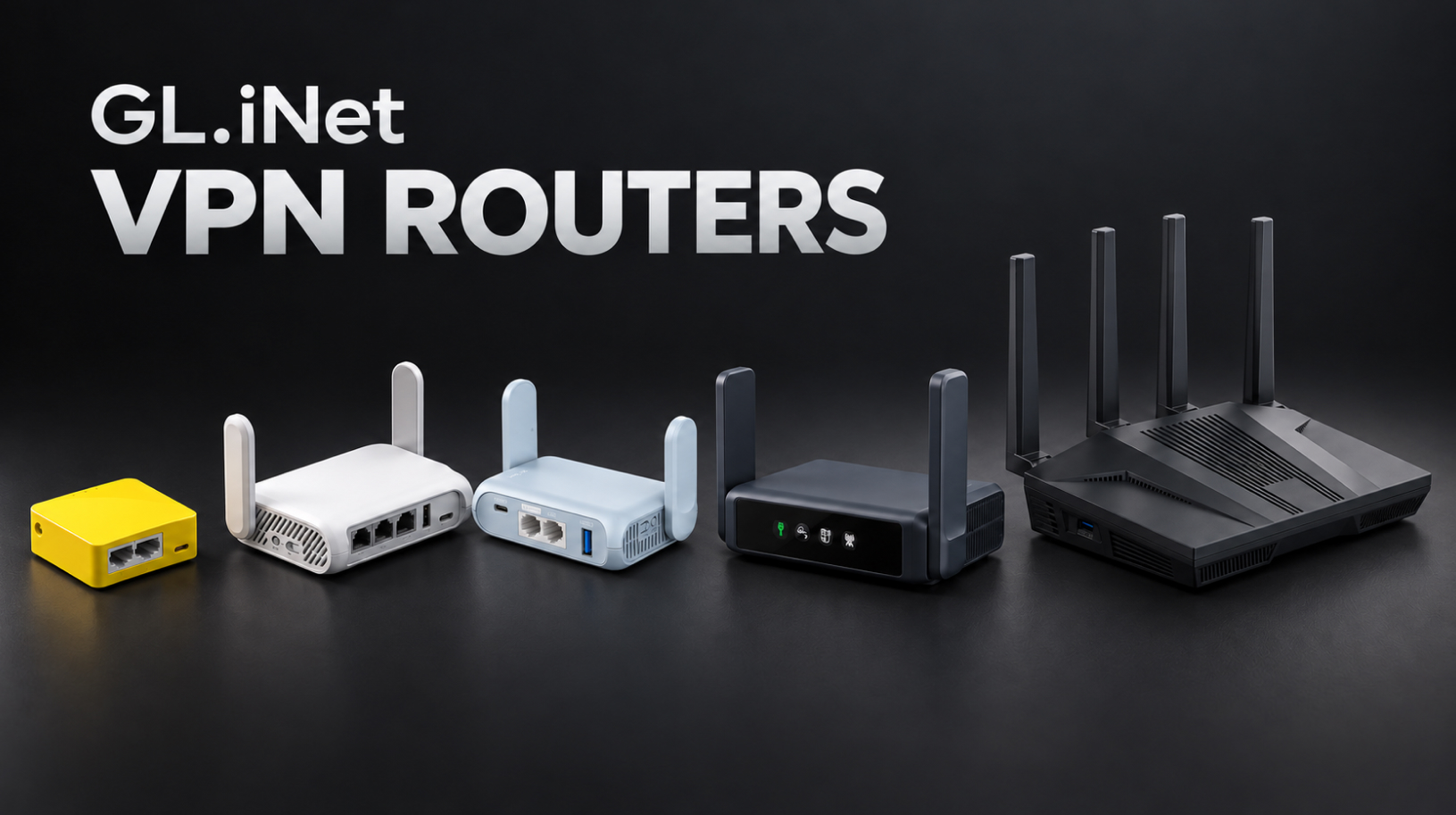
GL.iNet VPN routers: choosing a model for home and travel
GL.iNet VPN routers configured with WireGuard can route an entire network’s traffic through a VPN, from your laptop and phone to the TV in a rental apartment. This is also useful for a work computer that does not allow you to install a VPN app. We’ll compare five models for home and travel, configure the …
How to convert crypto to fiat: methods, risks and taxes
The ways you can convert crypto to fiat in Ukraine are changing quickly. Over the past year, exchanges have closed some fiat payment channels, banks have continued scrutinising risky transactions, and Ukraine’s parliament has moved towards a separate tax framework for crypto assets. If you do not keep up with these changes, you could face …
RWA in 2026: What It Is And How to Earn From Tokenized Assets
Imagine holding tokenized U.S. Treasuries, exposure to Apple shares, and a fractional interest in a real estate property in one crypto wallet. Some of these assets generate income, some simply track the price of an underlying instrument, and some can be used in DeFi. This is what RWA in 2026 looks like — a broad …